Mira Move App
How to Set Up Mira Move Pause
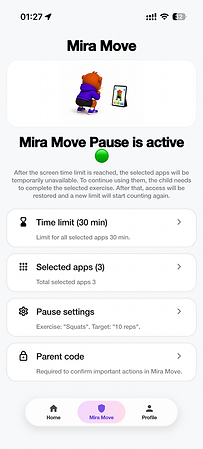
Mira Move Pause helps build healthy digital habits. Choose apps or categories (such as games or social media), set a screen time limit, and once the limit is reached, the selected apps will automatically be paused. To continue using them, your child needs to complete a short physical exercise in front of the phone’s camera. Once the exercise is successfully completed, access to the apps is automatically restored.
1. Get Started
Tap the “Try It” button.
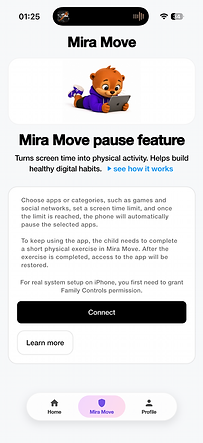
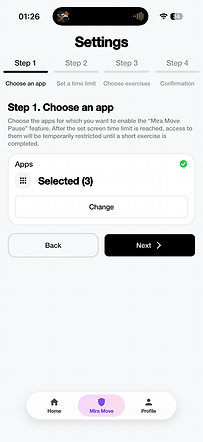
2. Step 1. Choose Apps
Choose the apps or app categories you want to include in Mira Move Pause. You can select as many apps as you like. Once you’ve made your selection, tap “Next”.
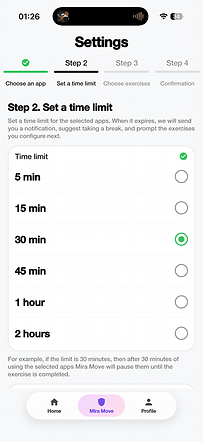
3. Step 2. Set a Screen Time Limit
Choose how long your child can use the selected apps. Once the screen time limit is reached, the selected apps will automatically be paused.
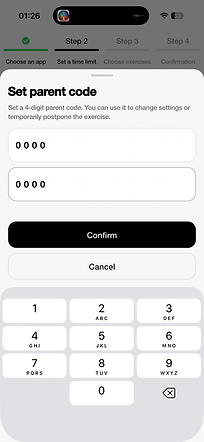
4. Create a Parent PIN
Create a 4-digit Parent PIN. It is required to confirm important actions, change settings, temporarily postpone an exercise, or disable Mira Move Pause.
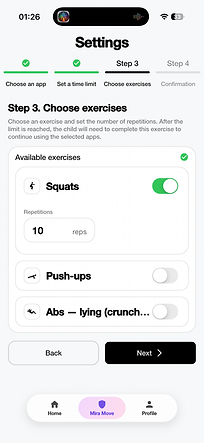
5. Step 3. Choose an Exercise
Choose an exercise and set the number of repetitions. Once the screen time limit is reached, your child will need to perform the exercise in front of the phone’s camera. The camera will automatically count the repetitions, and once the exercise is completed, access to the selected apps will be automatically restored.
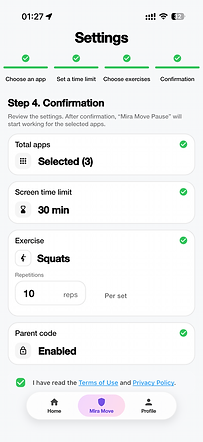
6. Step 4. Review Your Settings
Make sure all settings are correct, review the Terms of Use, and tap “Confirm”.
7. You’re All Set!
Mira Move Pause has been successfully set up.
From now on, whenever your child reaches the screen time limit, the selected apps will automatically be paused. Once the exercise is completed, the screen time limit will reset and start counting again.