top of page

Mira Move App
Granting Android App Permissions Android
To use the “Mira Move Pause” feature, you need to grant several system permissions. Mira Move uses official Android features only to automatically detect when the set screen time limit has been reached and temporarily pause the selected apps.
Important: Mira Move does not change your screen time settings without your permission. These permissions are used only for the “Mira Move Pause” feature and to manage the apps you selected.
1. On the “Mira Move Pause” setup page, tap the “Connect” button.

2. Review the list of required permissions and confirm that you are ready to grant them.

3. The permissions page will open. For the “Mira Move Pause” feature to work correctly, you need to grant all required permissions.

4. Select “Usage Access.”
5. Find Mira Move in the list, open it, and grant access. Then return to the permissions page.

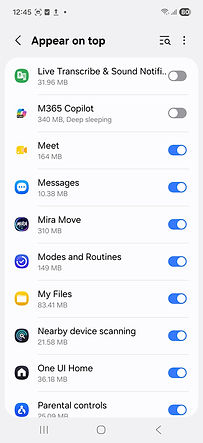
6. Select “Display over other apps.”

7. Find Mira Move, allow it to display over other apps, and then return to the permissions page.
8. Select “Accessibility.”

9. On the page that opens, select “Installed apps.”

10. Find Mira Move and open it.

11. Enable the permission for the app.

12. Confirm the action by tapping “Allow,” then return to the permissions page.

13. Done! All required permissions have been granted. You can now continue setting up the “Mira Move Pause” feature.

bottom of page